I’m seeing an “Assign to user” prompt in Jamf
If you’re trying to enroll in Jamf and seeing a prompt to “Assign to user” instead of the normal enrollment flow, that means Jamf has a local user account with your email. To fix this, you can sign into your Jamf account, and update your account with an email alias so that the emails aren’t matching up, such as
yourname+jamf@gmail.com. If you need assistance editing Jamf accounts, reach out Zip support.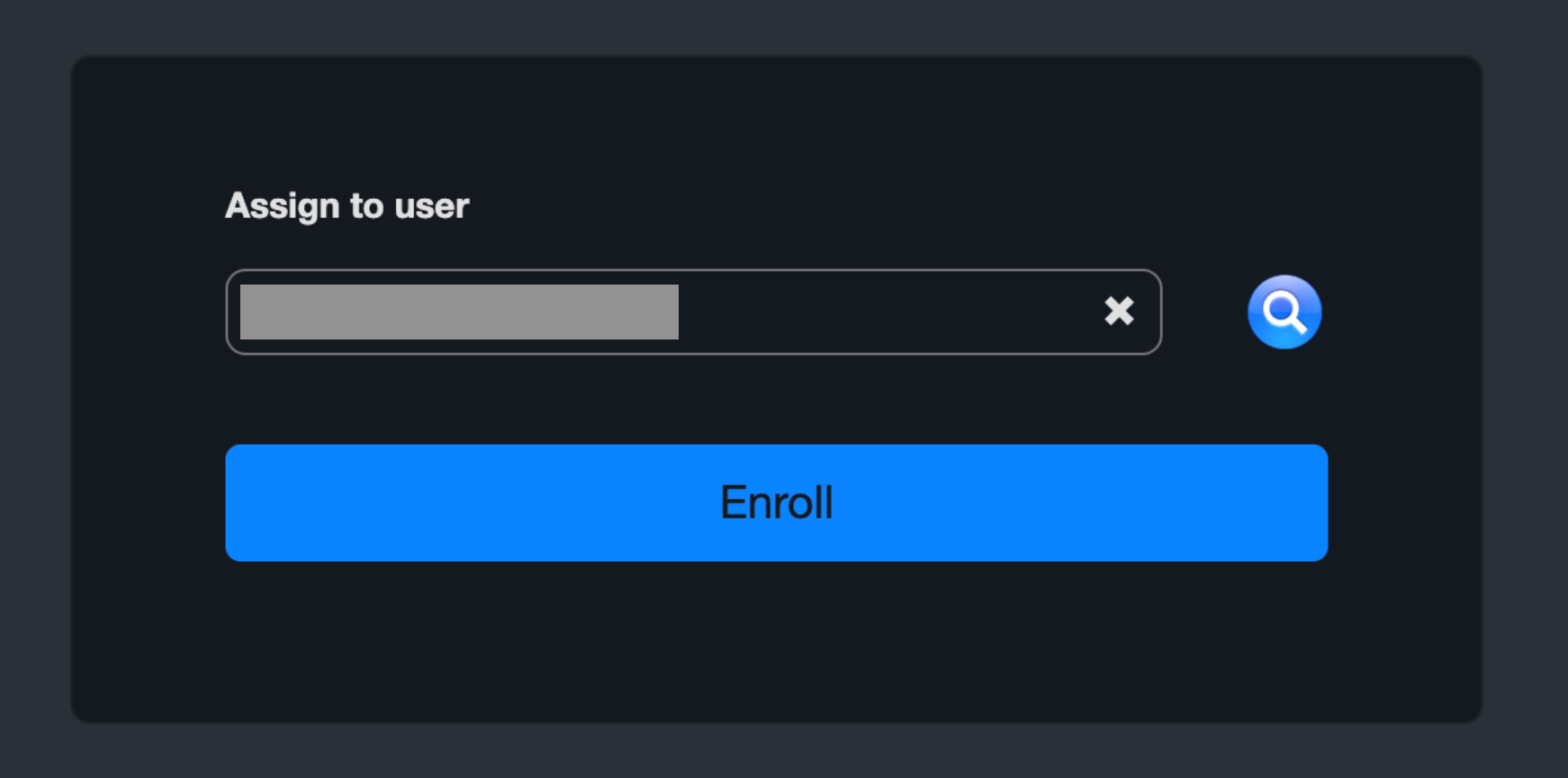
SSO failures on the Jamf enrollment page
Sometimes, when testing your first device through enrollment, it is possible that SSO login will fail. There are a couple possible reasons for what causes this, so follow the below troubleshooting steps to help you get this resolved quickly!
Step 1: Confirm the correct enrollment flow is being followed
This may sound simple, but make sure the test enroller is following the correct instructions sent to them via email from the Device Enrollment Control (device enrollment instructions).
- The enrollment link should be in the format {{yourdomain}}.jamfcloud.com/enroll where yourdomain = company name, one word with no spaces or punctuation.
- Make sure the test enroller’s device is connected to a stable internet connection.
Step 2: Confirm that SSO is correctly configured
In Zip’s Organization Settings page, click on your Jamf provider. Find the “SSO IdP Certificate Not Expiring Soon” and “SSO Certificate Not Expiring Soon” health checks and make sure they are healthy. If they are not, click the “Fix” button and follow the instructions to configure SSO with your primary identity provider.
For further troubleshooting, you can check other details in Google Workspace if Google is your primary IDP:
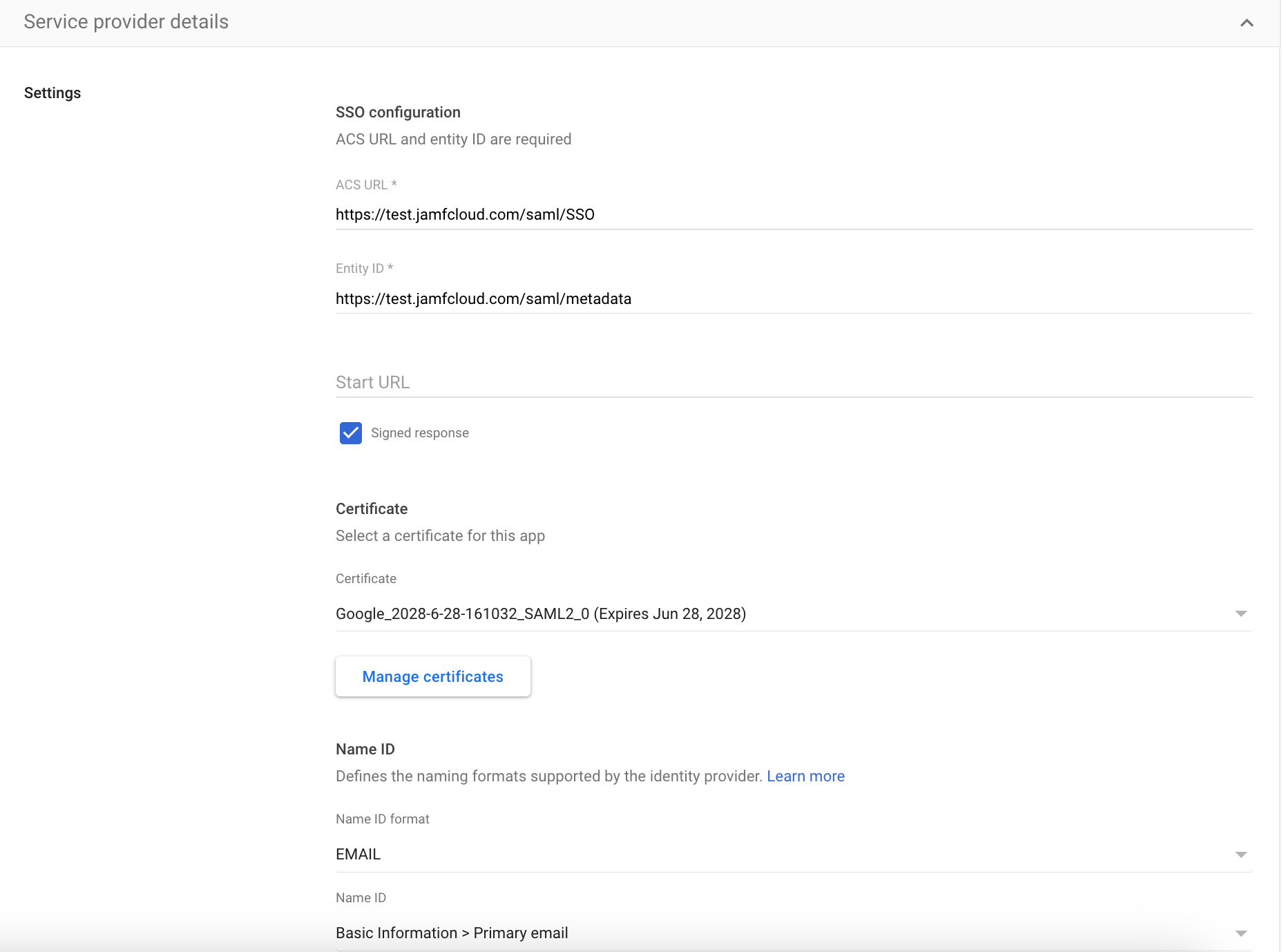

Step 3: Ensure you are testing the enrollment link the the correct browser profile:
- It is important that the enrollment link is tested in a browser that you are logged into your corporate account. If you are logged into a personal browser window, the SSO login will fail.
- To help troubleshoot, try the enrollment link in an incognito/private browser window.
- Please take a screenshot of any error messages you see.
Step 4: Reach out to Zip for support.
Once the above steps have been completed, please reach out to success@zipsec.com with:
- Screenshots of Google Workspace SSO setup, if applicable, from step 2.
- Screenshots of the error messages you encountered from step 3.
I enrolled my device but it’s not showing up as enrolled
It’s important that user’s devices remain connected to the internet for the duration of device enrollment. There is a risk that if a user enrolls their device and immediately shuts the laptop or disconnects it from the internet, that all configuration profiles won’t fully install. We recommend that the user removes any configuration profiles from their device and retries the enrollment process from the start, ensuring that they are fully connected to the internet during the process.