You’ve assigned a user a Windows device in the Device Enrollment Control and ran into the next steps: “Provision an Entra account for this user”. What happens next?
The user has a Google accountSetting up Account SyncDeprecated Advanced Setup (Google Group Method)The user has a Google Account and you already set up Account SyncThe user has an Okta account
The user has a Google account
In order to enroll Windows devices in Microsoft Intune so that Zip can manage them, any employees that use those devices will need to have a Microsoft Entra ID account and Microsoft Intune license associated with that account.
If you primarily use Google as your IdP, Zip can ensure that any employee who signs in with their work credentials on a Windows laptop will automatically be assigned a Microsoft Entra account and license.
This Google <> Entra Account Sync can be set up with a few clicks.
Setting up Account Sync
Prerequisites:
- Set up Google and Entra ID/Azure AD providers in Zip following the Identity Provider docs.
When setting up Google Workspace, make sure that you include the Customer ID field or else we won’t be able to sync accounts.
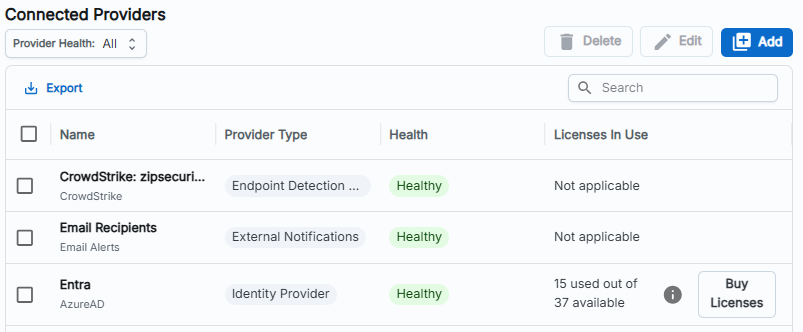
- Ensure Entra/Intune License Availability: The Zip Console will automatically assign the necessary Enterprise Mobility + Security E3 licenses to accounts, as long as they are available for assignment. If no licenses are available, add more licenses to your account before turning on account sync or when you've fully used your current license allotment.
- To check your current license allotment, navigate to the Connected Providers page and review the “Licenses in Use” column. Licenses can be added by clicking the “Buy Licenses” button. Additional details available here.
Configure Automatic Account Sync
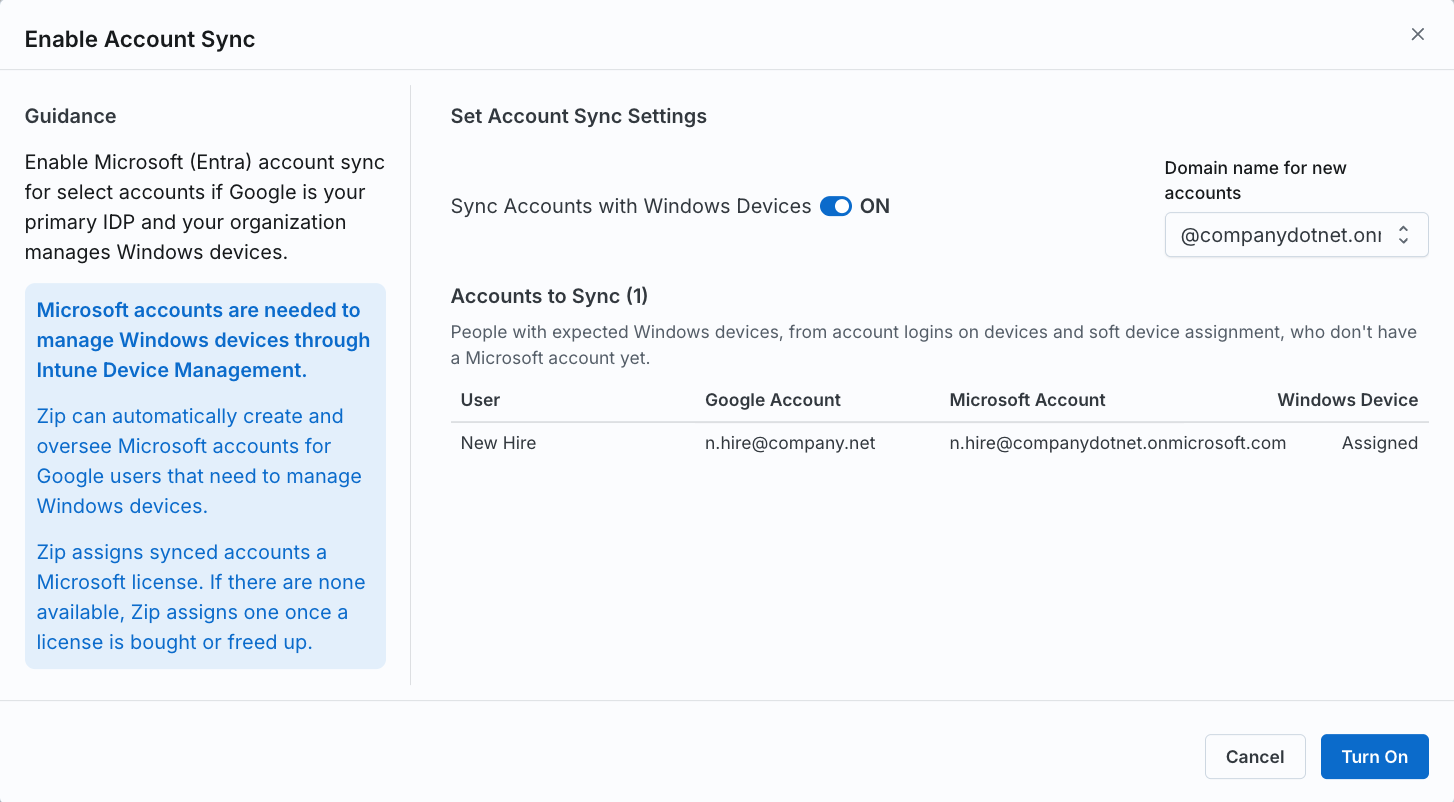
When enabled, this creates Entra accounts automatically whenever Zip detects an employee without an Entra account using their Google credentials on a Windows device.
In the same Entra ID Account Sync section on the https://console.zipsec.com/organizationsettings?tab=providers page, click on “Turn On Automatic Account Sync”. There you’ll be able to set the domain name for the new Microsoft accounts that are created, see which ones will be immediately created if there are any existing users with Windows devices who don’t have an associated Microsoft account, and turn the feature on.
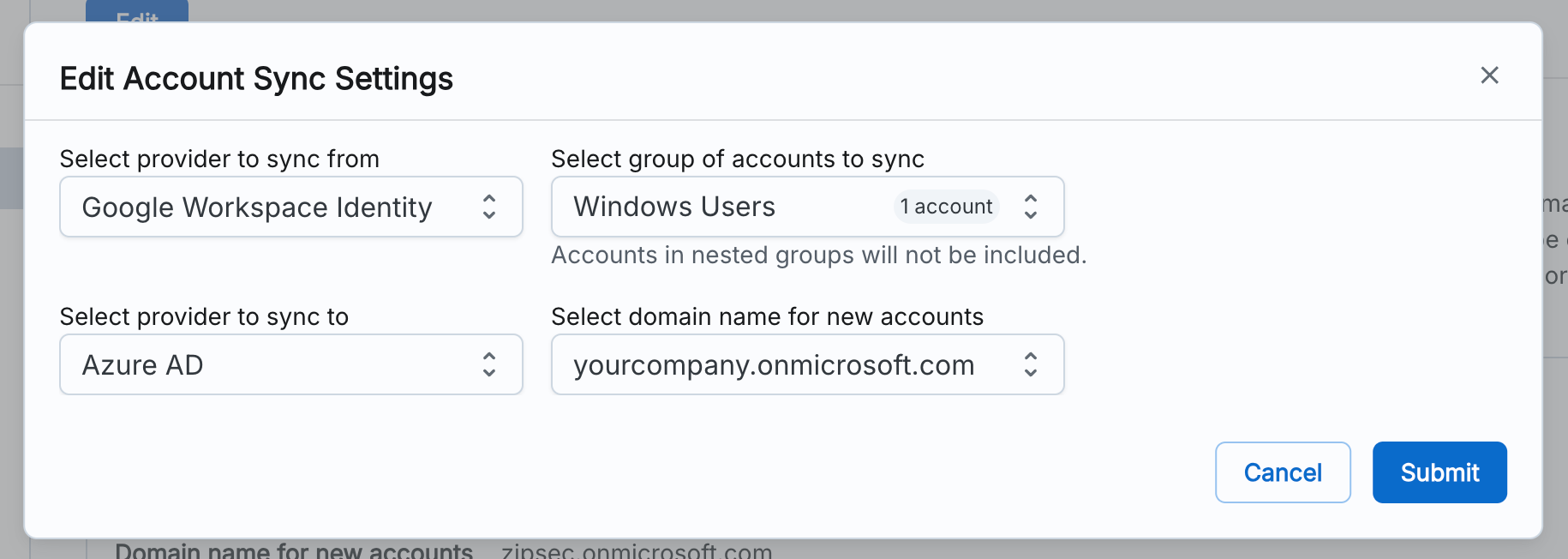
Deprecated Advanced Setup (Google Group Method)
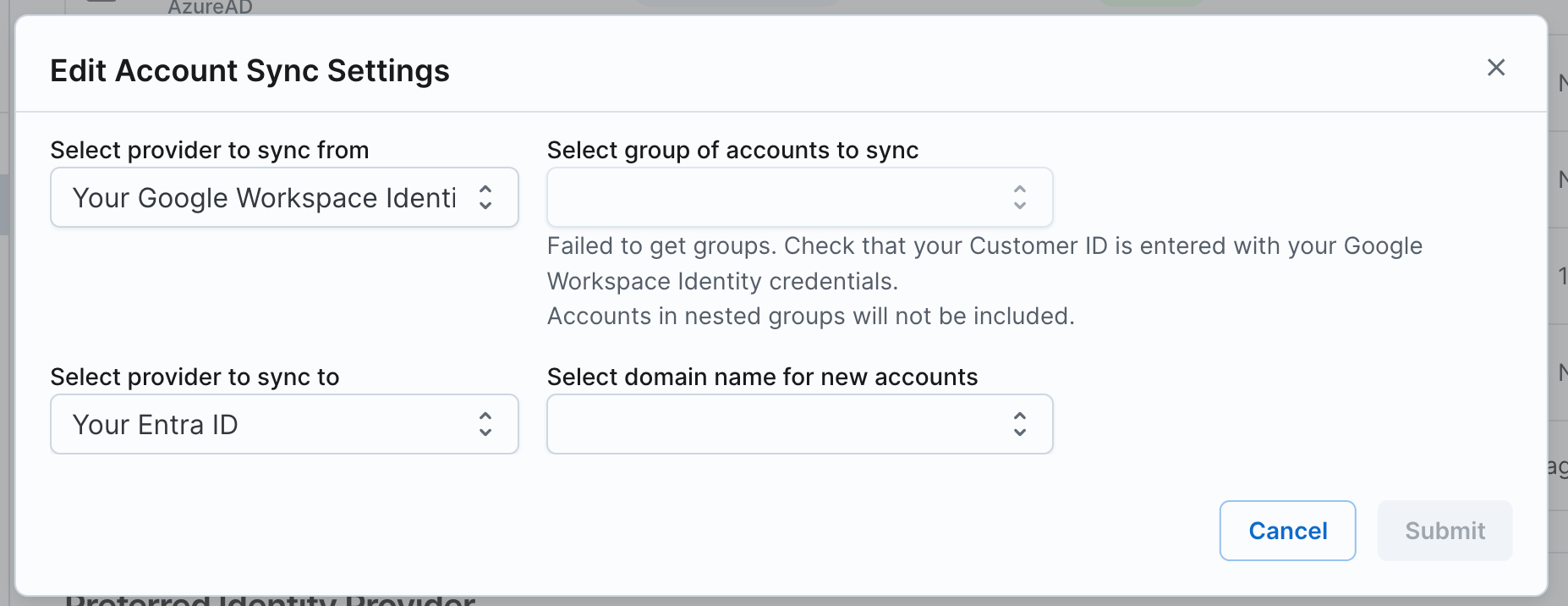
The user has a Google Account and you already set up Account Sync
In this case, go to your Google Admin console and make sure the user is in the Windows user group that is synced to Entra.
The user has an Okta account
We do not yet automate account sync between Okta and Entra. To resolve this issue, you will need to:
- Create a new user in Entra following the docs here
- Assign the user a license following the docs here