Setting up a Zip Security & Google Workspace Identity Integration
This guide will walk you through the steps to configure a Google Workspace Identity client, which you should configure if you use Google Workspace as your IdP or if you want to use our SaaS app monitoring feature.
This process is our Quick Connect flow which integrates Google in just a few clicks. If you would like to use our legacy advanced flow instead, please follow these instructions.
⚠️
For our Quick Connect flow, you need to be a Google Super Admin user. If you’re not, the Zip Console will be unable to pull data.
To check if your user has the correct permissions, you can look under the “Users” tab in admin.google.com , find your user, click into it and verify that you see “Super Admin” under “Roles”
1. Connecting Zip <> Quick Connect Integration
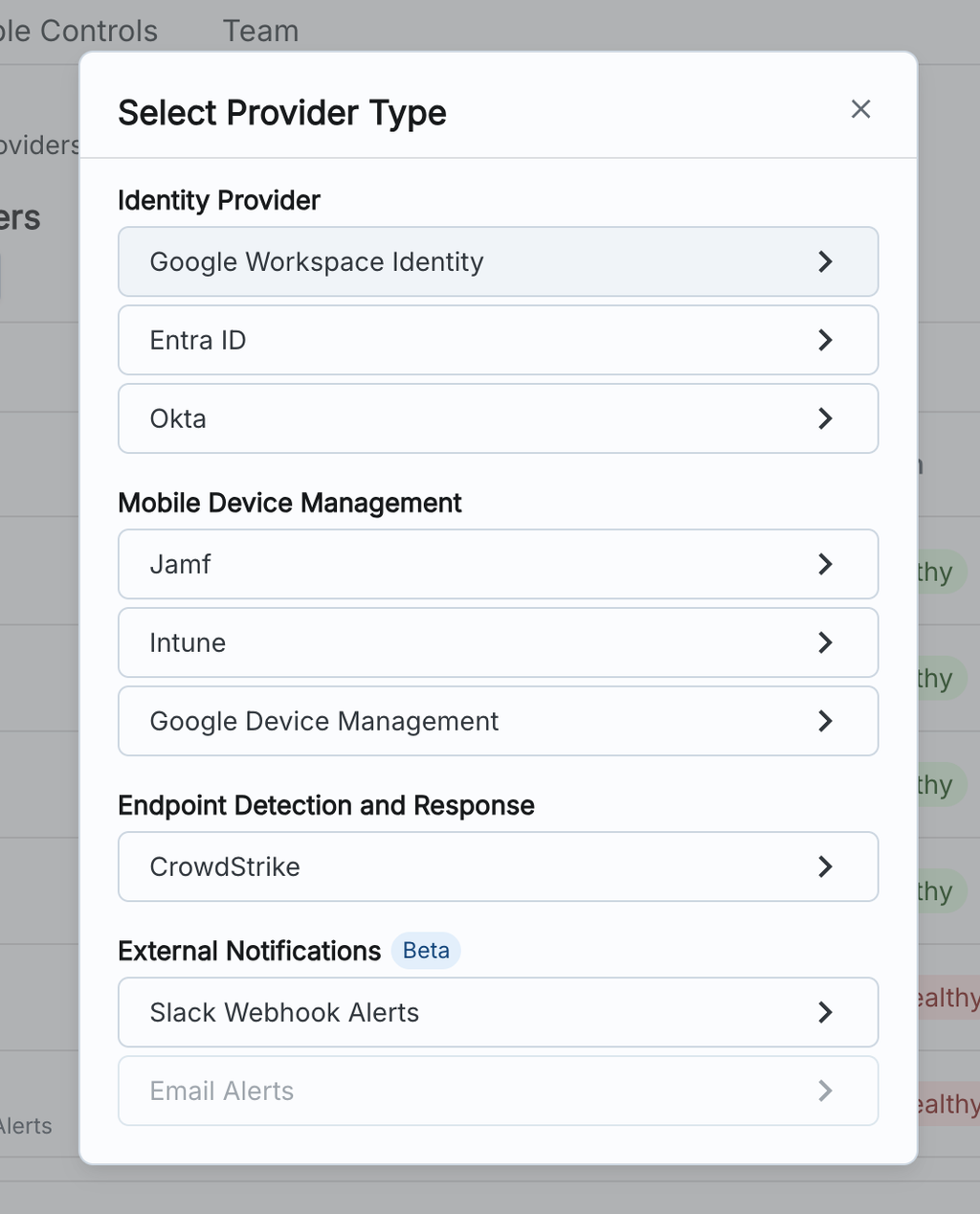
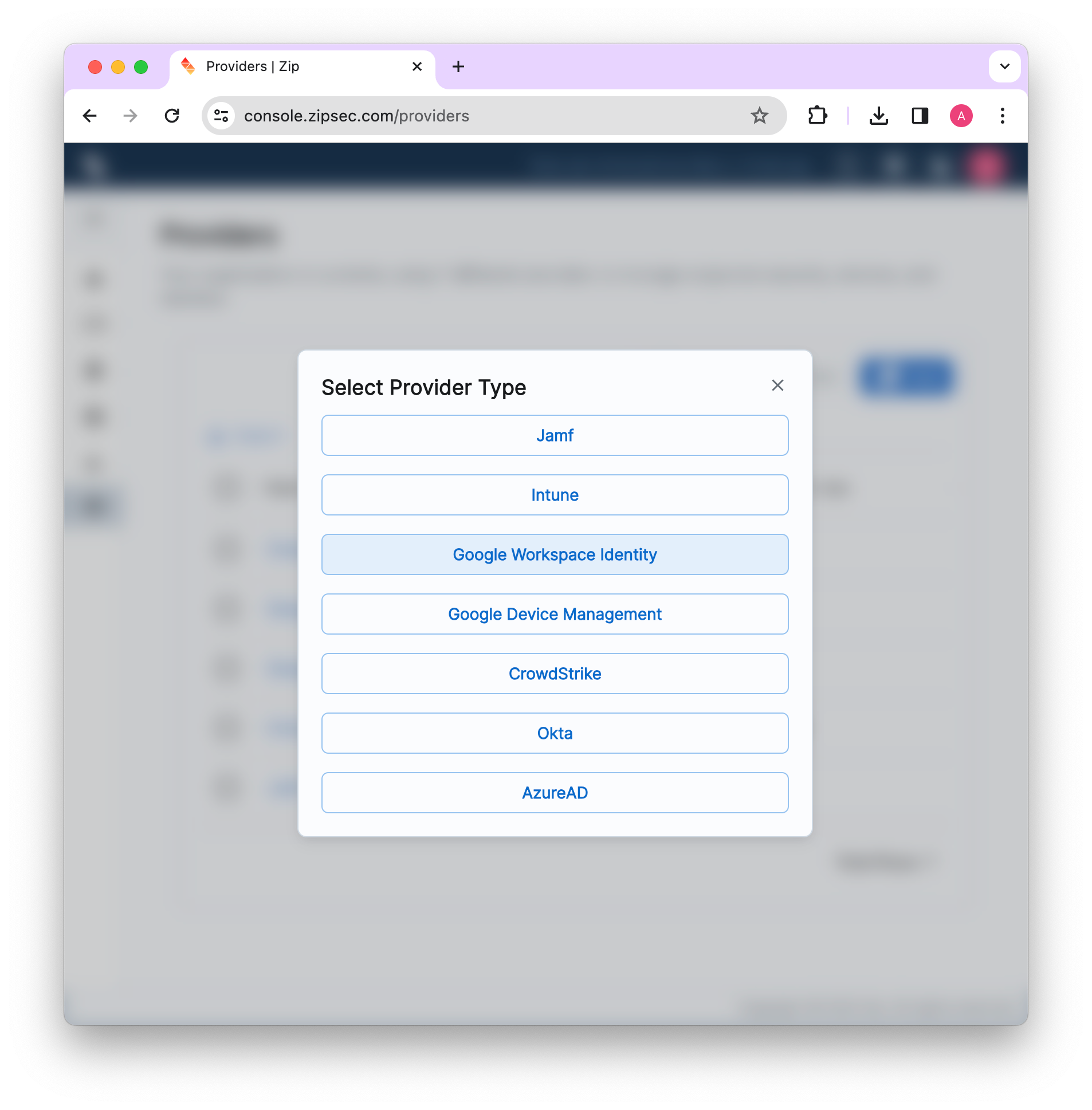
Navigate to https://console.zipsec.com and log in to your organization. Navigate to the “Organization Settings” page, then press “Add” under the providers section, and add a new Google Workspace Identity provider.
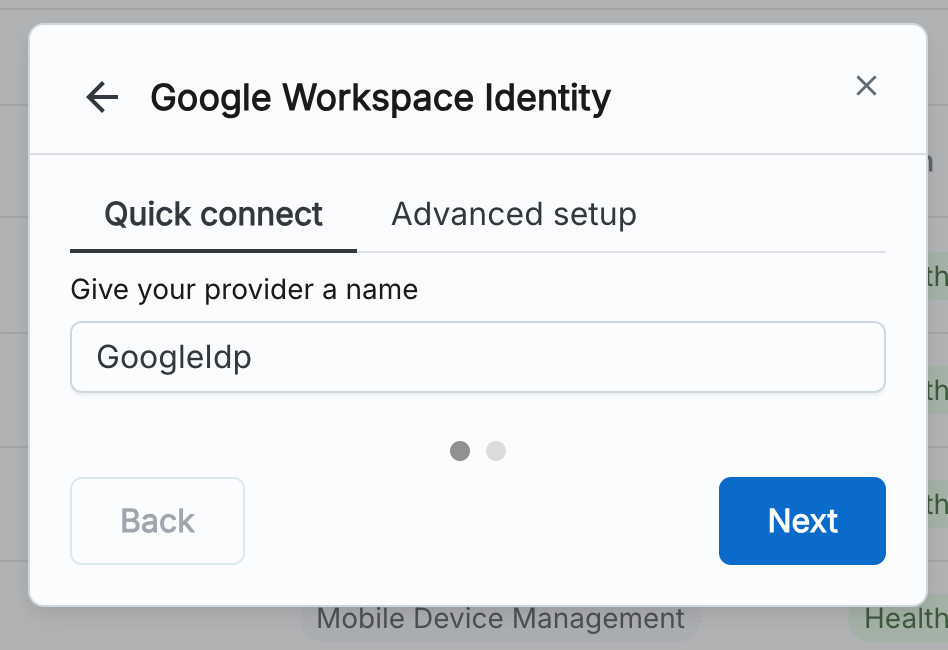
You will then be able to give your new provider a name - by default, this name is GoogleIdP. If you’re okay with that name, click “Next”
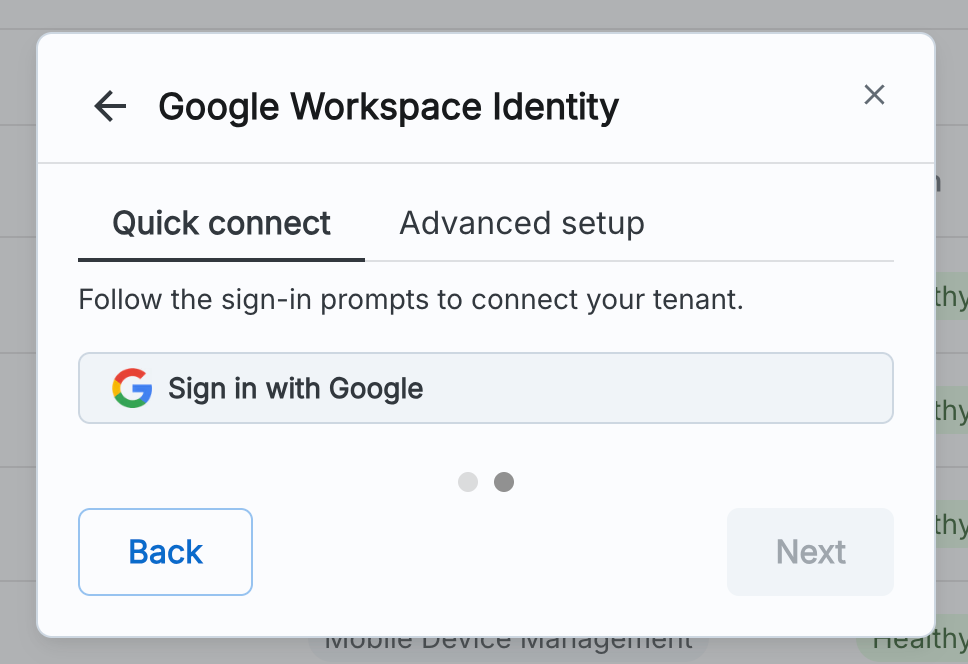
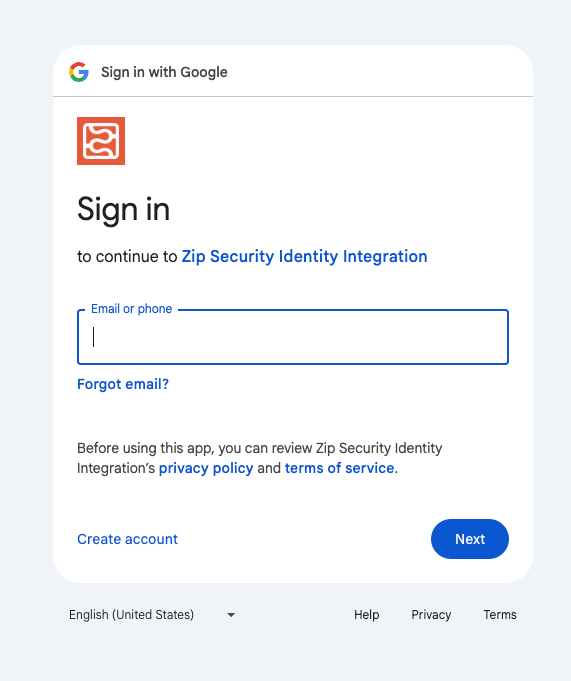
You should then see a “Sign in with Google” button. Click it!
You will now be redirected to a pop-up where you will be prompted to log in. As a reminder, you’ll want to sign in with an account that is a Super Admin in Google.
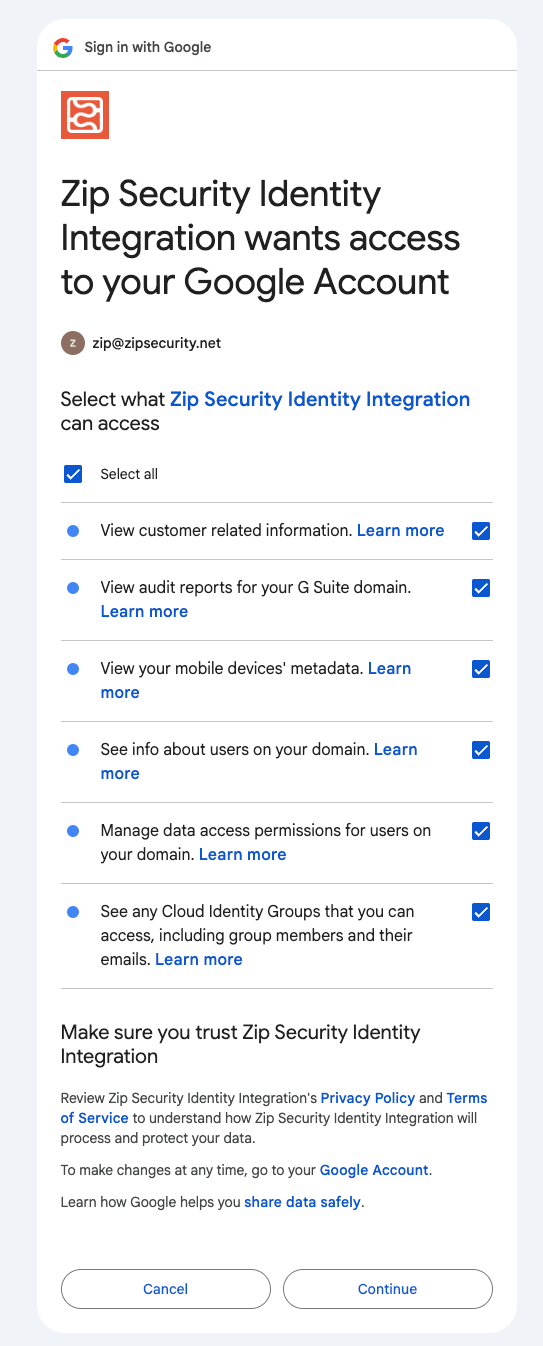
You will then be prompted to grant the required scopes to the Zip app
Important: Please click the Select All button to ensure that you grant all needed permissions to Zip so that we can pull needed data
Click “Continue” and then you should return to the Zip Console and will see your Google IdP data displayed.
2. Confirm Health Checks and Refresh Success
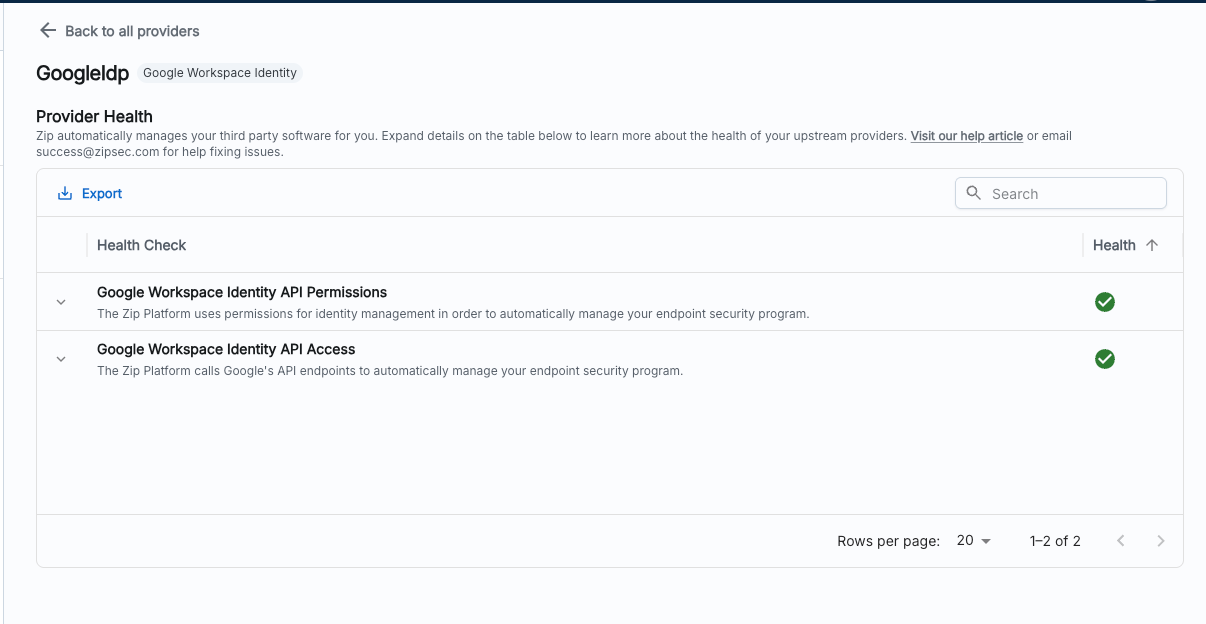
Click into your Google IdP provider. You should see that all health checks pass
You should also see that the provider sync succeeds (this may take a few minutes) and the following banner will appear in the top right corner.
3. Troubleshooting Resources
If you’re coming across an error after adding the provider, the following may be useful:
In addition, you can always email success@zipsec.com!
Setting up a Zip Security & Google Workspace Identity Integration (Legacy Approach)
This guide will walk you through our legacy steps to configure a Google Workspace Identity client through a service account approach. There is no functional difference from the Quick Connect option, and these steps will take much more time to set up.
1. Setting up the Google Cloud Console
If you already set up a project when setting up the Google Device Management integration, then you can proceed to section 2.
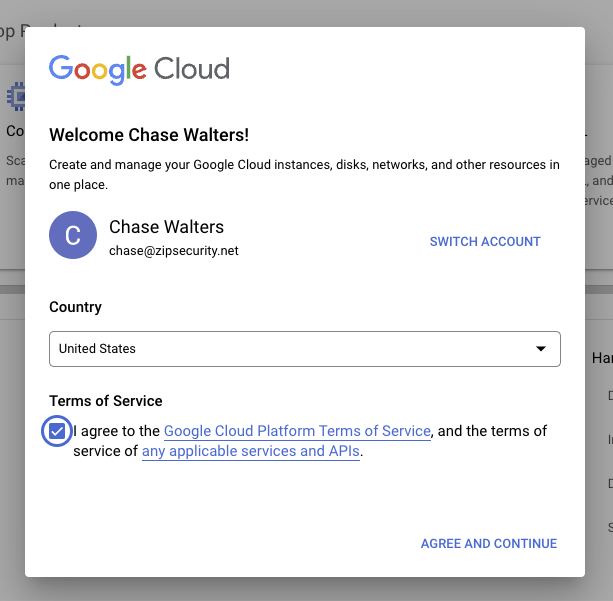
Navigate to https://console.cloud.google.com. If you’ve never logged in before, you will see a pop-up asking you to agree to the terms of service. You can click “agree and continue.”
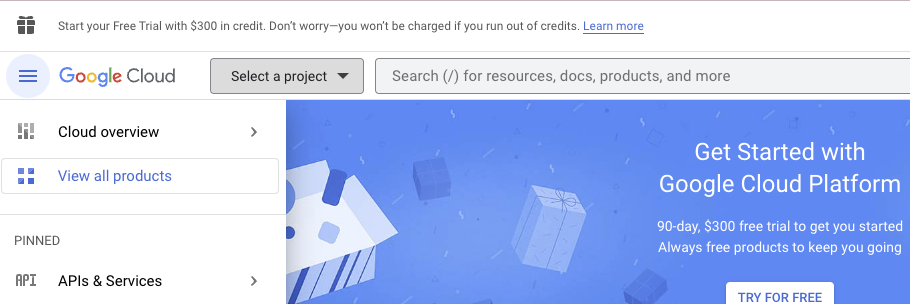
2. Next, select the “Select a project” dropdown.
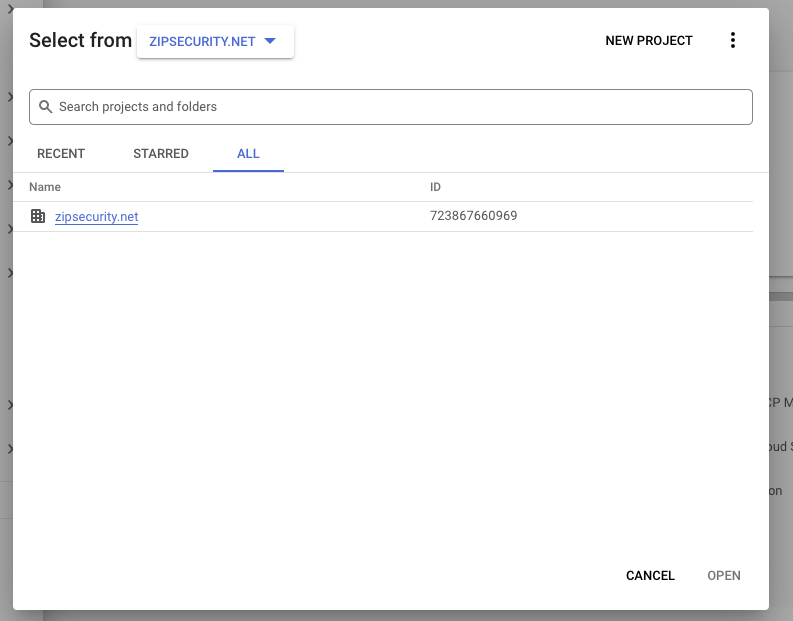
3. Change the selector to your organization from “no organization”. Our sample organization is zipsecurity.net. Your organization will likely be named after your primary domain. Once you select your organization, click the “NEW PROJECT” button. You may have to refresh the page to get the drop-down.
⚠️
You may need to complete the initial steps of the Google Cloud Organization setup process (Dashboard → Left side menu → IAM & Admin → Identity & Organization) for the Workspace → Cloud organization to be created. Completing step 1, “Enable Cloud Identity and create an organization” should be sufficient.
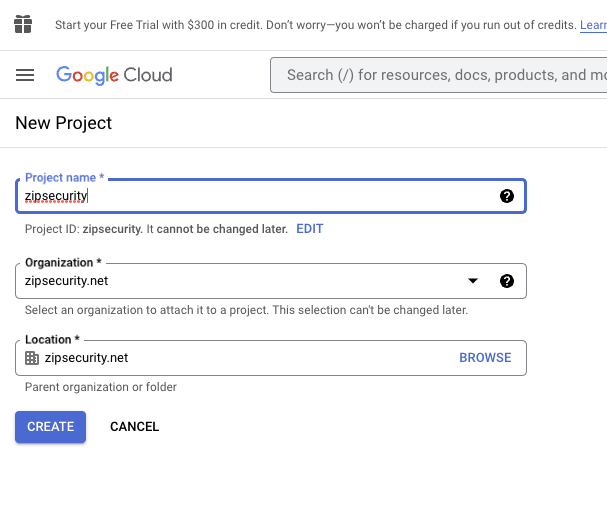
You will be taken to the below screen. All you should have to fill out is the “project name” field. Name the project “zipsecurity” and then press CREATE.
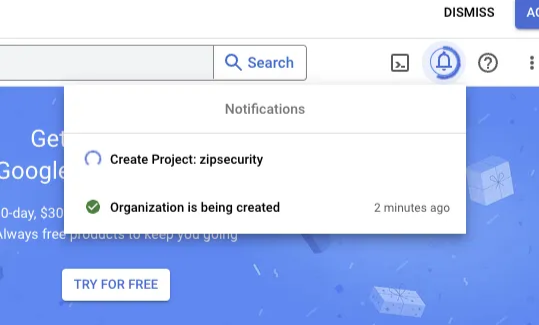
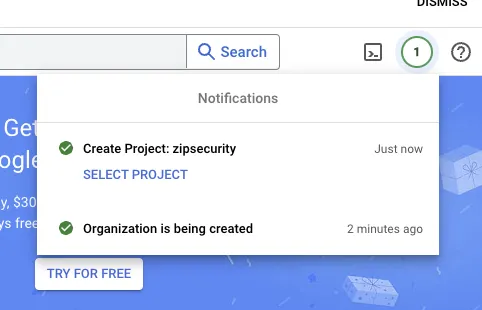
Once you create the project, you should see the following loading screens. Once the project is created, select “SELECT PROJECT.”
2. Enabling APIs
Navigate to https://console.cloud.google.com. In the drop-down on the top left of the screen, navigate to the project that you created in part one.
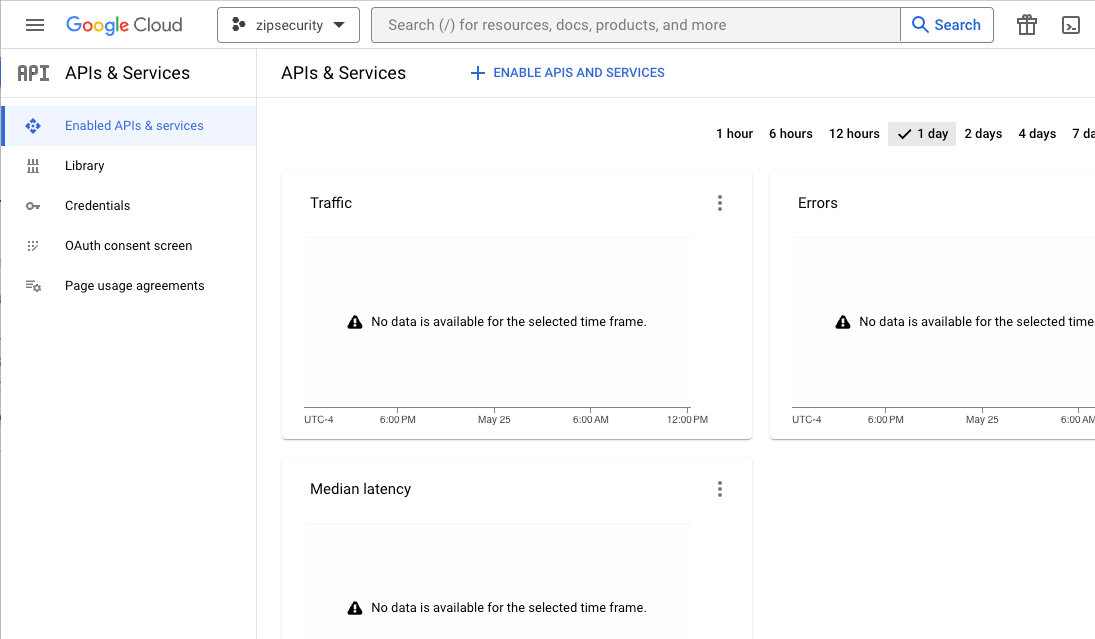
Next, you are going to enable the Admin SDK & Cloud Identity APIs for the project. To do this, in the left hand sidebar click “Enabled APIs & services” and select the blue “+ ENABLE APIs & SERVICES” button under the search bar.
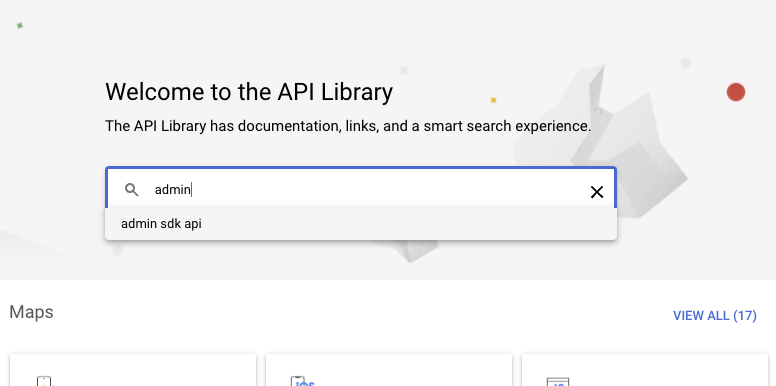
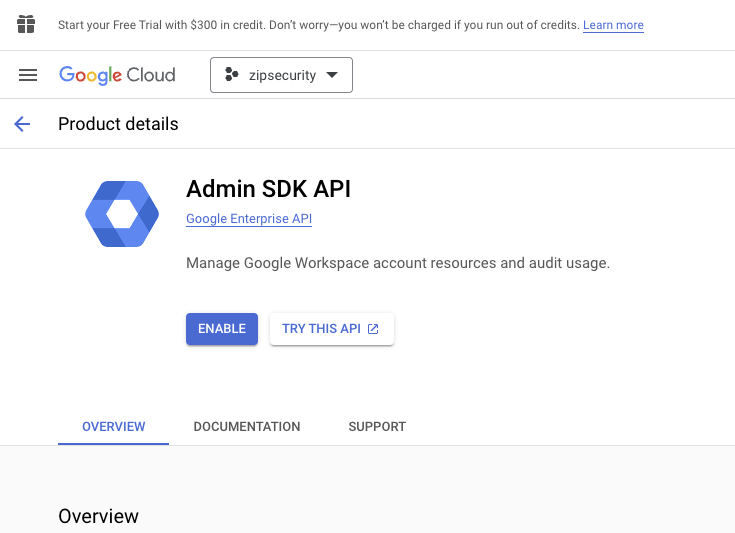
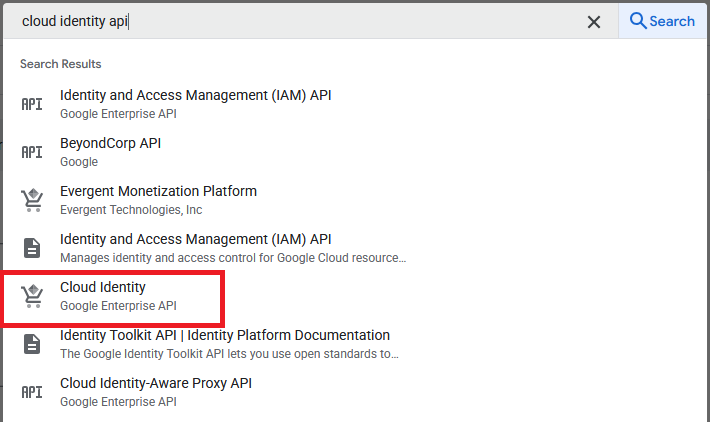
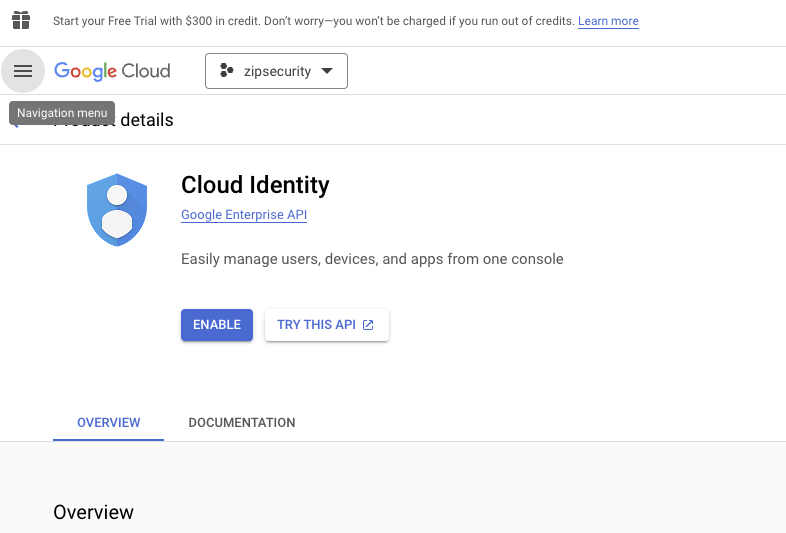
Search for the Admin SDK API & enable it. Repeat the process for the Cloud Identity API.
Searching for the APIs
Admin SDK API
Cloud Identity API
3. Creating Service Accounts
Now that you have created a project and enabled the APIs, you can move on to creating a service account.
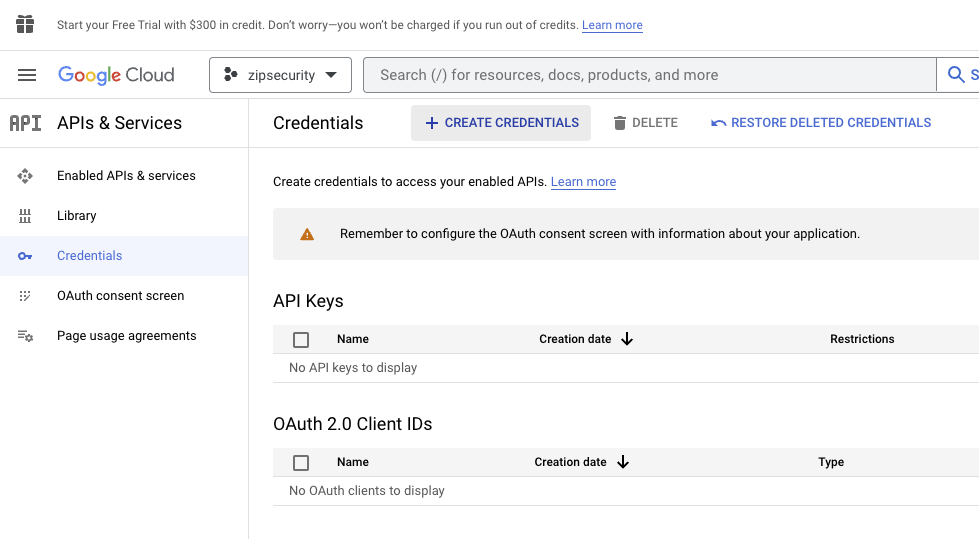
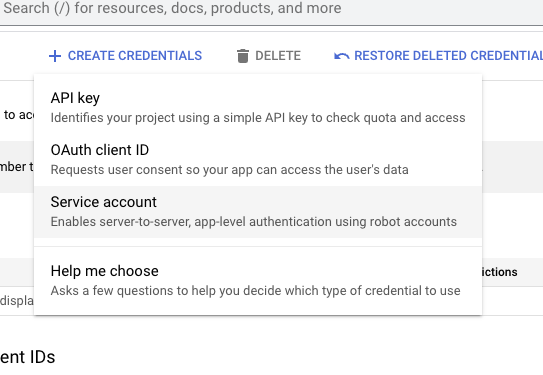
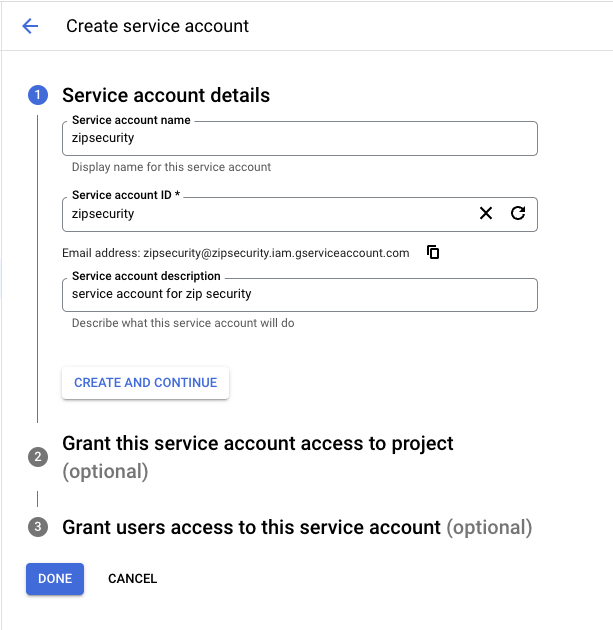
Create a service account by navigating to “Credentials” in the left-hand sidebar and then clicking the “CREATE CREDENTIALS” button, selecting the “Service account” option
You will be taken to a screen where you can name and configure the service account. Name the service account “Zip Security Workspace Identity” and add an optional description (everything else should auto-fill) and press “Create and continue”
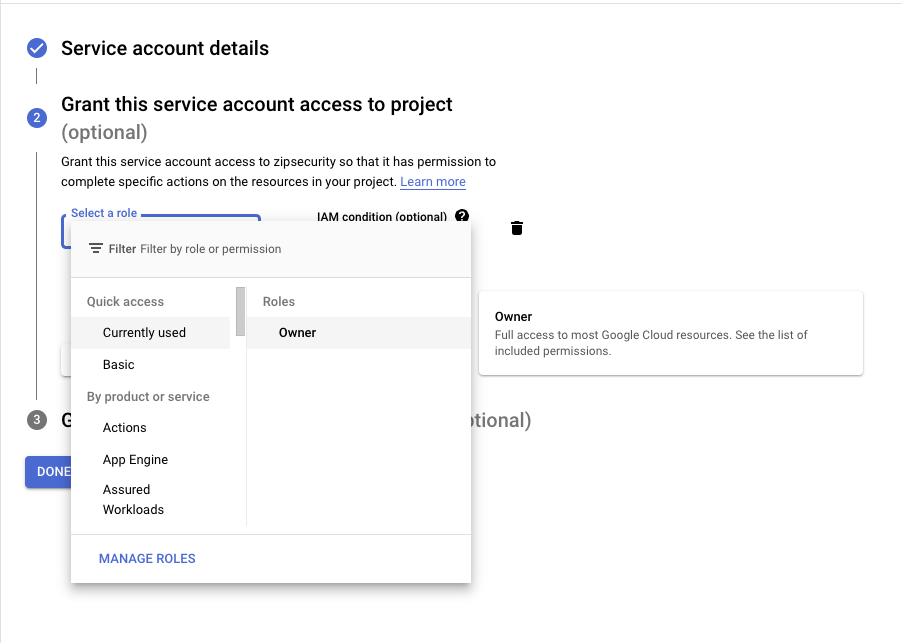
Grant the service account “Owner” on the project and then select “Continue”
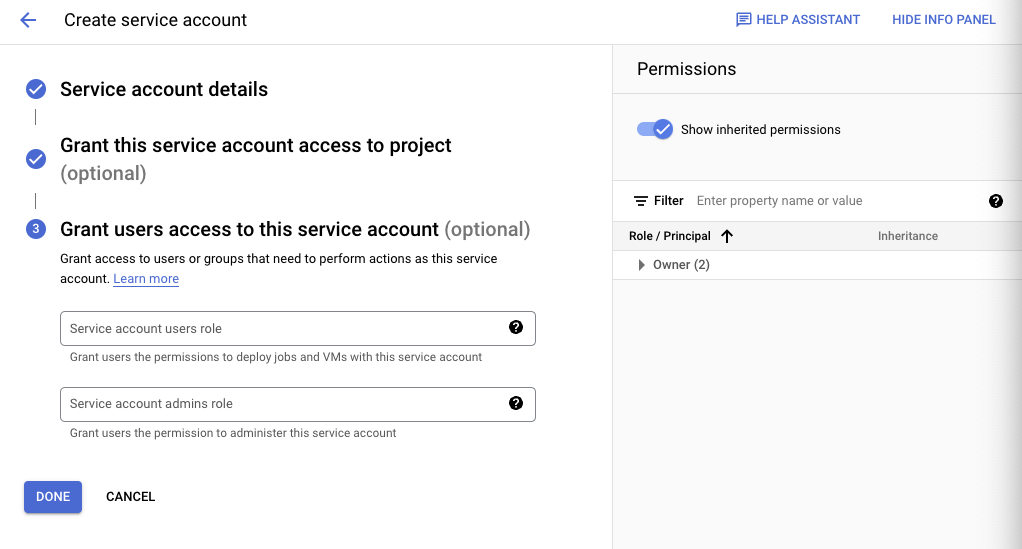
You can skip the last prompt — we don’t need to configure the optional attributes. Select “DONE”
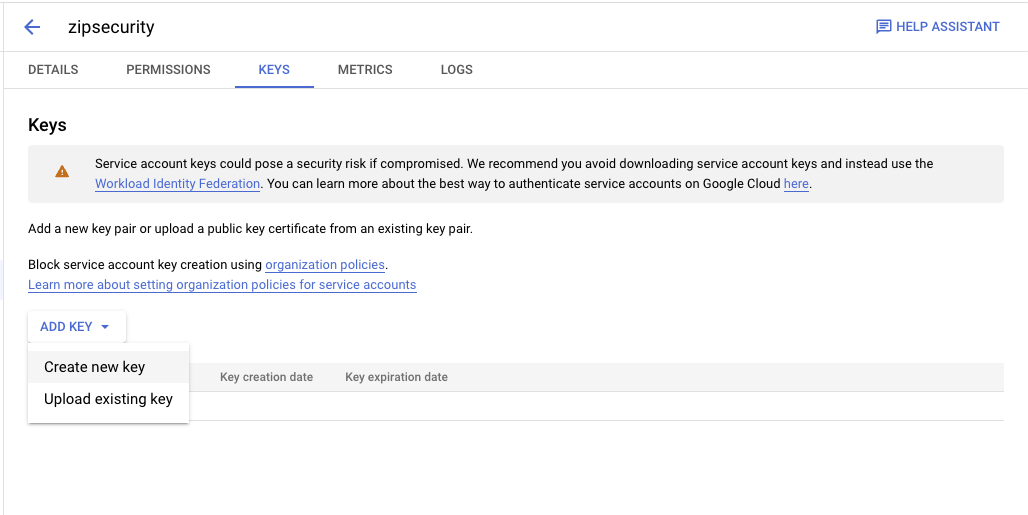
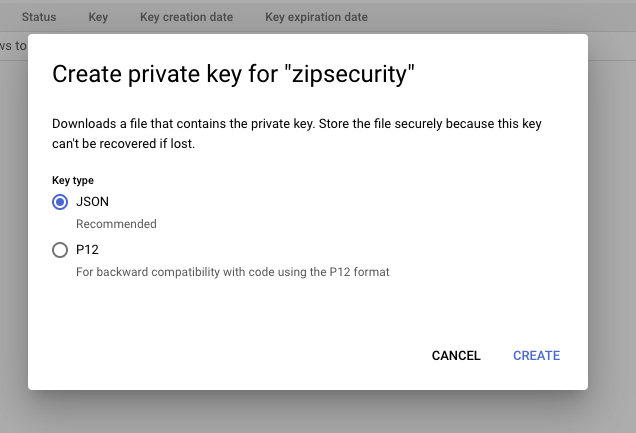
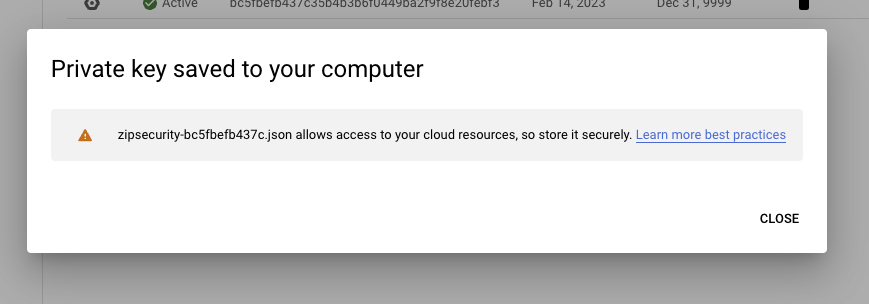
You should now see the service account is active. Click on the service account, then navigate to the “Keys” tab to make a new credential and export that credential as a JSON. You will need the exported file again in step #4. You should see the following screens
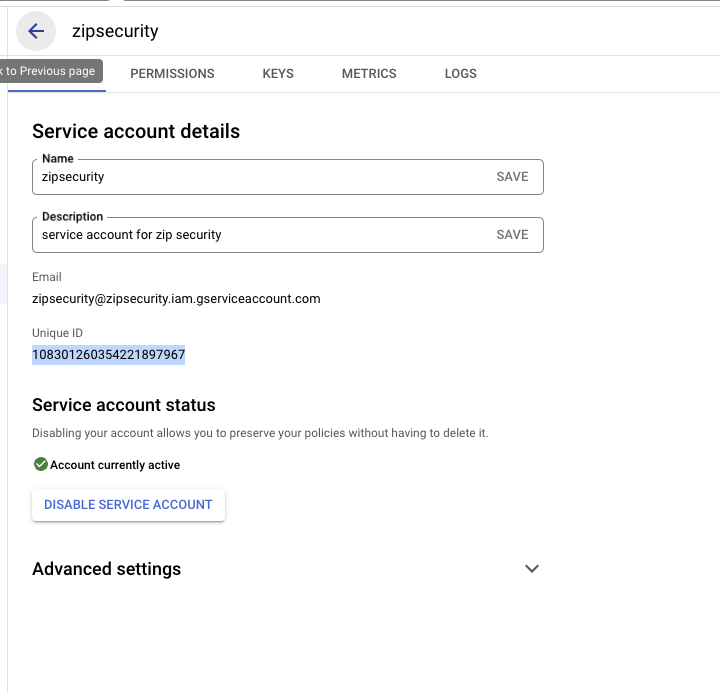
Finally, navigate back to to “Details” tab. Copy the Unique ID field into your clipboard for the next step.
4. Granting permissions to the Zip Service Account
Almost there! Now we have to grant the service account access to certain scopes.
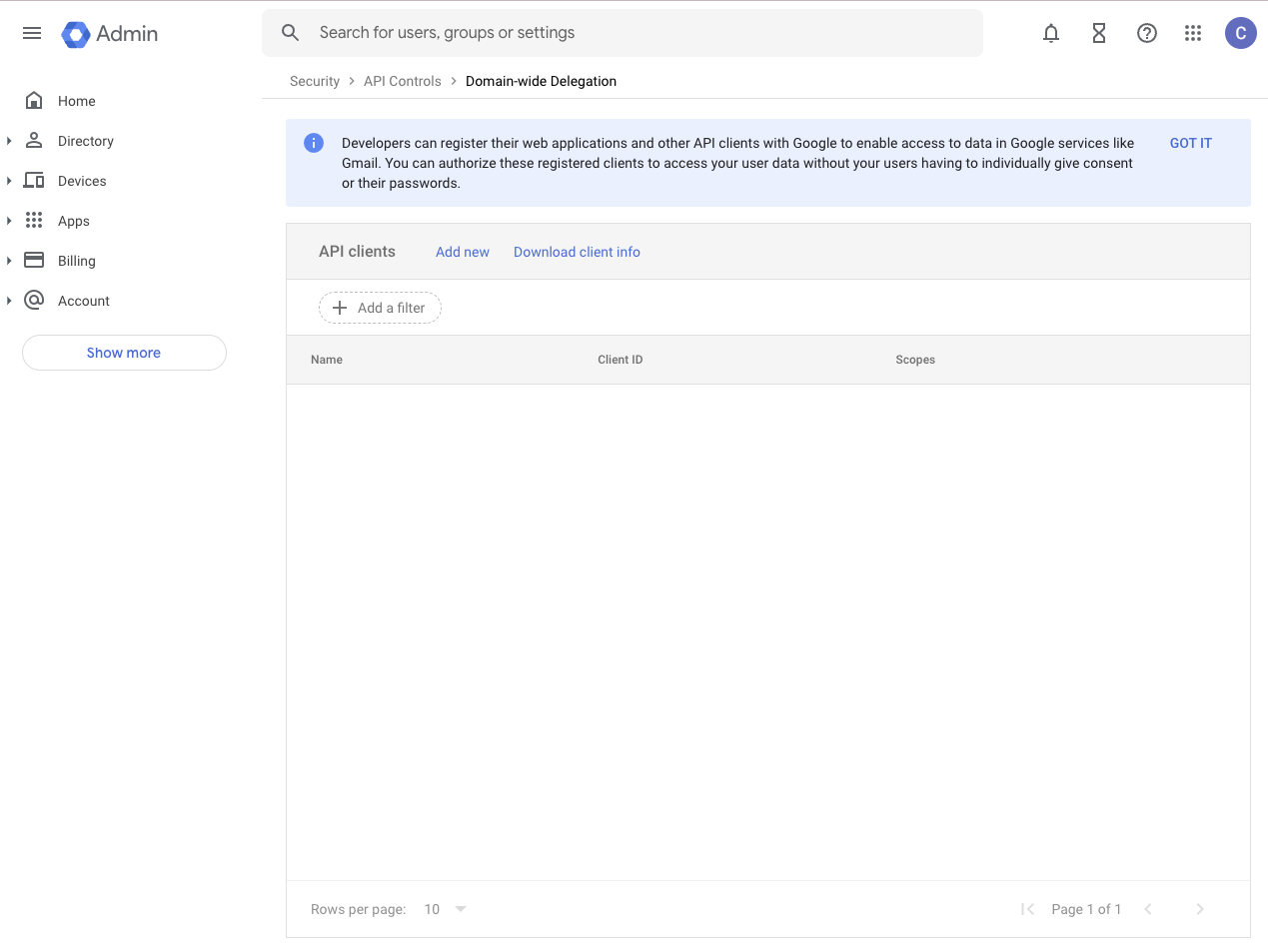
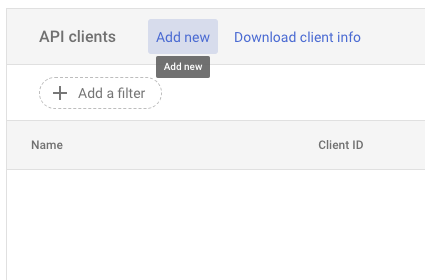
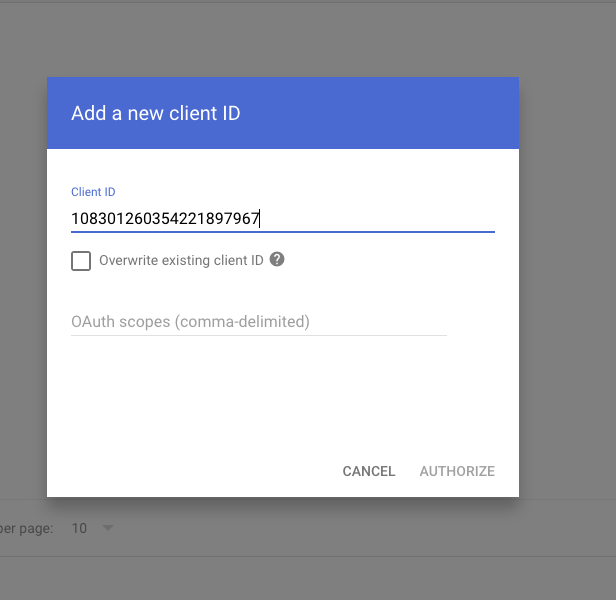
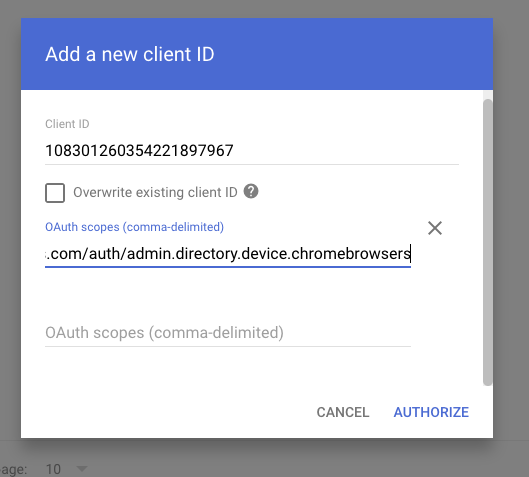
Go to https://admin.google.com/ac/owl/domainwidedelegation and click “Add new”. Paste the Unique ID you just copied in step 2.6 into the ClientID field, and then paste the following scopes into the “scopes” tab. You can see this flow in the screenshots below. Please note that it can take a few minutes for permissions changes to take affect, so if you’re adding new permissions to an existing provider registration you may need to wait about 15 minutes prior to retrying the action.
Paste the Unique ID copied from the service account setup step and paste the scopes listed above.
5. Connecting Zip <> Google using the service account
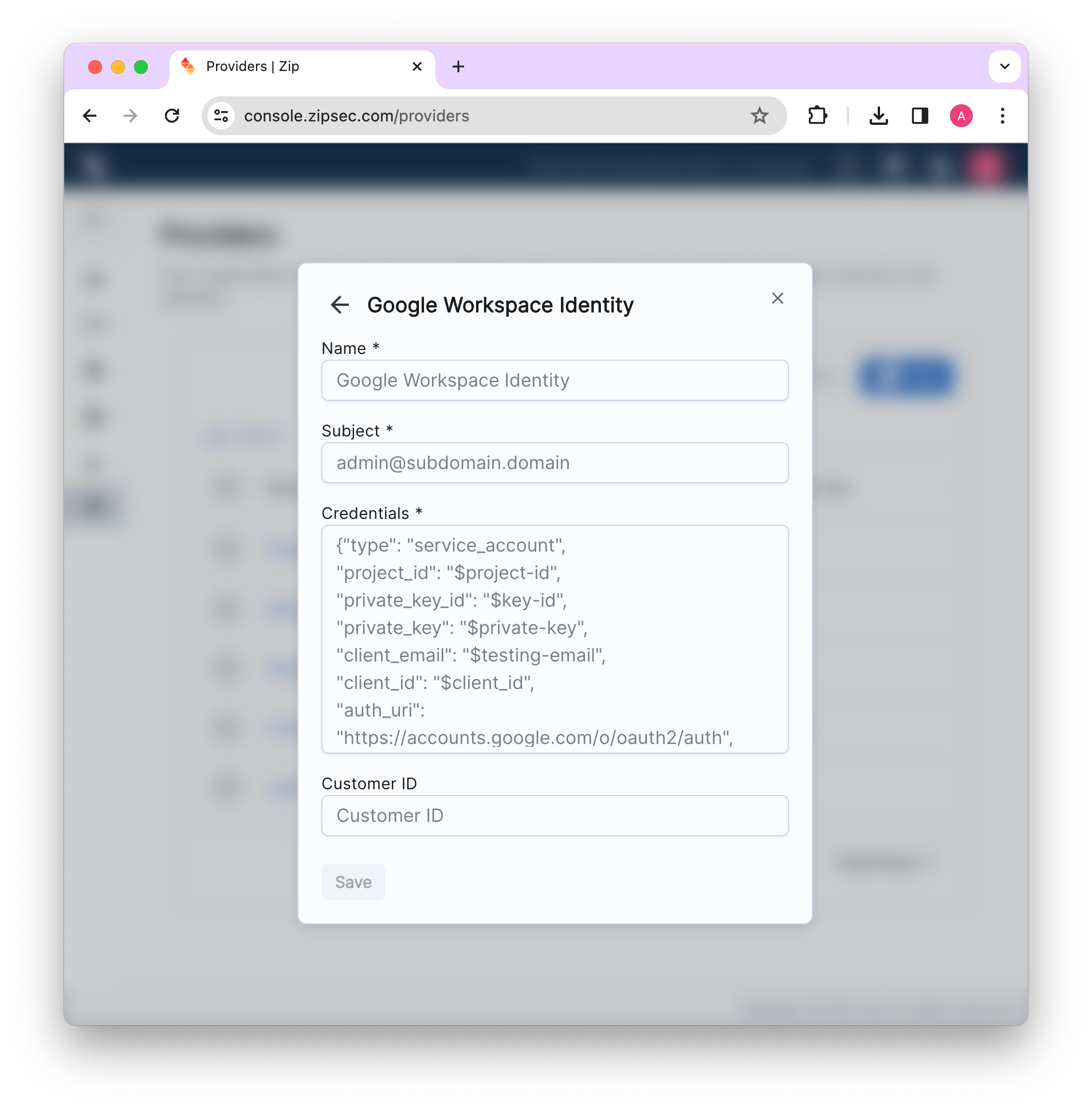
Finally, you can connect Zip to Google! Navigate to https://console.zipsec.com and log in to your organization. Navigate to the “Organization Settings” page, then press “Add” under the providers section, and add a new Google Workspace Identity provider. Enter the email address of your Google Workspace Administrator (likely you, if you’re setting this up) in the email field. Finally, copy/paste the contents of the .json file(s) you download in step 2.5.
Account Sync setup for managing Windows users with Google as a primary IDP
If you are planning to create new Azure accounts for managing Windows devices based off of your Google accounts, you also need to enter in your customer ID, which you can find by following the steps here: Go to Menu > Account > Account Settings > Profile. Next to Customer ID, find your organization's unique ID.
Once all of your required fields are filled, click “Save”! To complete the account sync setup, follow the instructions in our Account Sync documentation.
6. Troubleshooting Resources
If you’re coming across an error after adding the provider, the following may be useful: